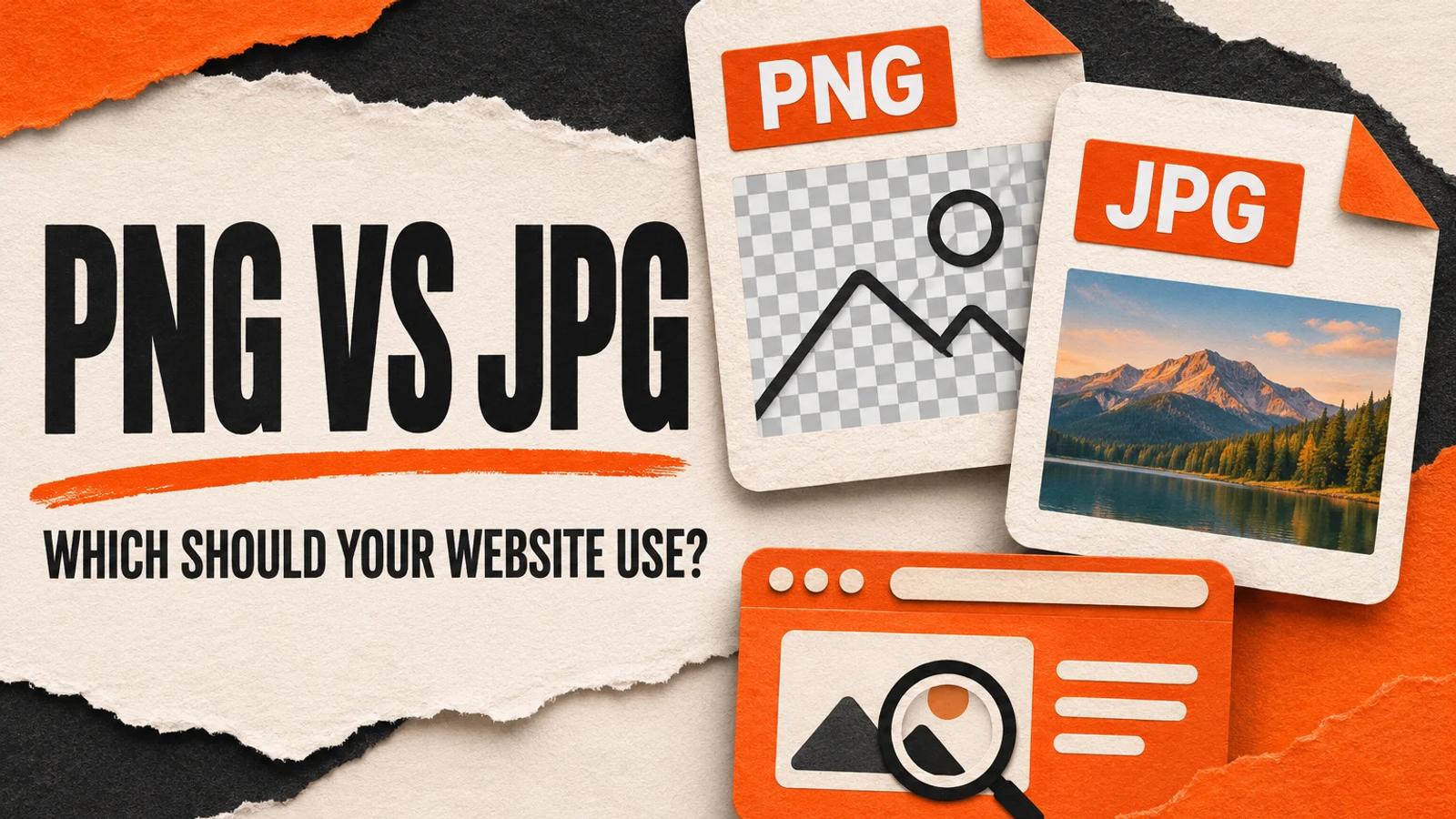
Choose PNG when you need to retain transparency or exact raster detail, and consider JPG for photographic content where lossy compression is acceptable. Compare actual exports at the intended dimensions. In our three-sample test, JPG produced smaller files but removed the logo's transparency. A PNG source URL on our site also returned AVIF when the request advertised support, so inspect the delivered response before deciding what visitors download.
Your product image looks fine in the editor. Then you upload it and the page feels heavy. You export a smaller JPG, but now the logo has a white rectangle behind it. Which file should you keep?
First check what the image needs to preserve. A product scene, small text in a screenshot, and a transparent logo need different things. The smallest export can still lose a feature your page relies on.
PNG is a useful choice when you need transparency or exact raster detail. JPG is worth testing for photographic content when a smaller, lossy export still preserves the detail readers need. For a website, there is one more check: the format you upload may differ from the format visitors receive.
On November 23, 2026, we encoded three sample assets as PNG and JPG at fixed dimensions. We also checked a live image URL from this site. The smaller JPG files did not preserve every feature, and the live .png URL returned AVIF to a request that advertised AVIF support.
PNG vs JPG at a glance
JPG and JPEG refer to the same format in this comparison. The shorter extension does not give the image a different compression method.
| Decision | PNG | JPG / JPEG |
|---|---|---|
| Preserve the normalized raster pixels without lossy compression | Suitable | A typical lossy export changes pixel values |
| Keep a transparent background | Supports an alpha channel | Requires an opaque background |
| Export a photographic product scene | Can be large; compare alternatives | Often useful when the chosen quality is acceptable |
| Keep small text and sharp UI edges | Useful starting point | Inspect for compression artifacts and color changes |
| Choose the final website delivery format | Check the actual response | Check the actual response |
Adobe's format comparison and MDN's image guide describe these underlying tradeoffs. Neither gives you a universal file-size winner for every asset. Your content, dimensions and encoder settings affect the result.
Keep a source you can edit again, then make an export for its intended placement on the website.
What we tested, and what the numbers mean
The sample set contains three assets:
- A generated product scene showing an olive backpack, fabric texture and a plant. It represents photographic-style content; it is not a photograph of a real product.
- A Chrome screenshot of SavageAudit's public pricing page, captured at 1200 × 800 pixels.
- SavageAudit's existing transparent logo, kept at 640 × 640 pixels.
We resized the generated scene to 1200 × 800 before creating either export. Each format received the same normalized pixels for its sample. The screenshot and logo kept their captured or existing dimensions.
The local encoder was Sharp 0.34.5, using libvips 8.17.3. PNG used compression level 9 with adaptive filtering and no palette reduction. JPG used quality 80, with separate 4:2:0 and 4:4:4 chroma-subsampling exports. JPEG exports used a white background where the source had transparency.
| Sample | Dimensions | PNG | JPG quality 80, 4:2:0 | JPG quality 80, 4:4:4 |
|---|---|---|---|---|
| Generated product scene | 1200 × 800 | 1,687.6 kB | 178.0 kB | 198.9 kB |
| Pricing-page screenshot | 1200 × 800 | 168.2 kB | 71.7 kB | 81.1 kB |
| Transparent logo | 640 × 640 | 31.6 kB | 15.4 kB | 21.4 kB |
Here, 1 kB means 1,000 bytes. These are encoded file sizes on disk. We did not measure page-load time, LCP improvement or conversion changes. The image previews in this article may pass through website delivery transformations; the table refers to the named local exports.
JPG was smaller in all three samples. These sizes describe the exports we made. They do not establish equivalent visual quality or show that JPG meets each image's requirements.
Product images: compare the detail you need to show
For the generated backpack scene, the 4:2:0 JPG was 178.0 kB, compared with a 1,687.6 kB PNG at the same dimensions. That is a useful reason to inspect a JPG export before publishing a large photographic-style PNG.
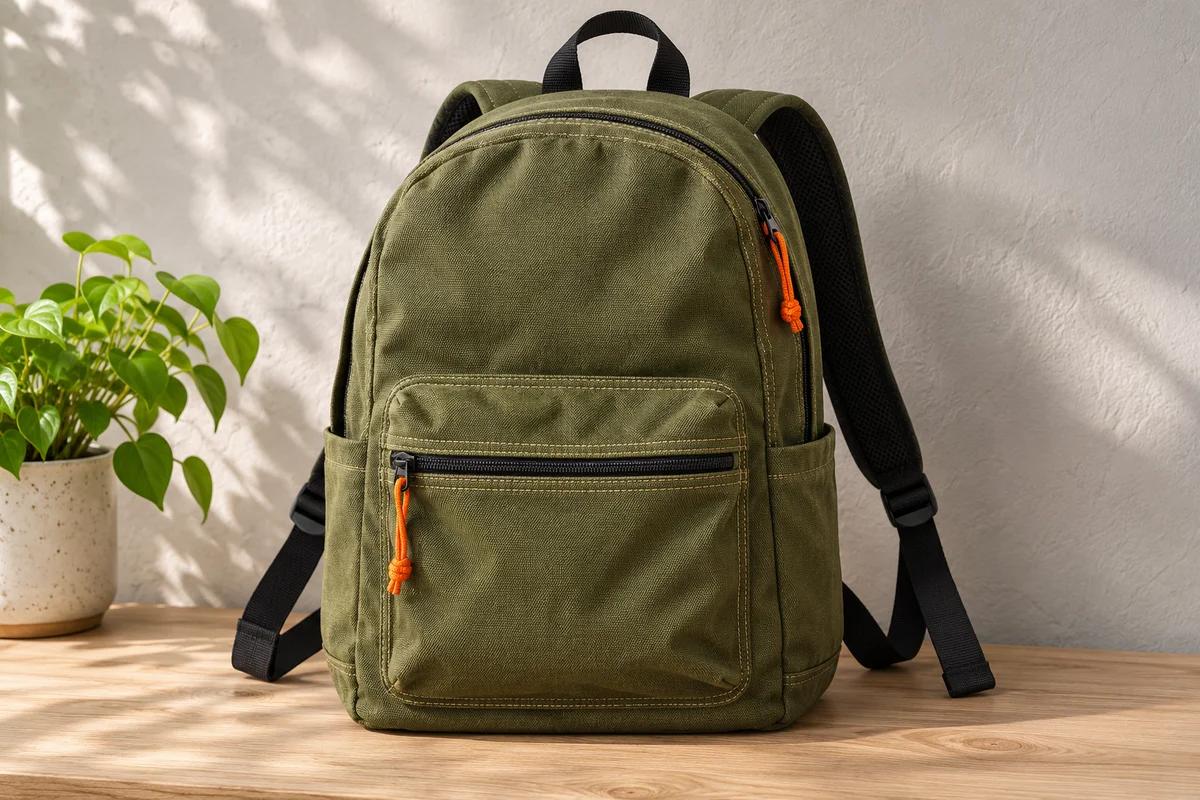
Look at the parts a buyer needs to judge. For a bag, that might be fabric texture, stitching and zipper detail. For a product dashboard, it might be labels and small numbers. Check the details someone needs from that image.
View the export at its intended display size, then inspect a closer view if the page offers zoom. A product image that works as a small card may not hold up as a full-width gallery image. Your page needs the version appropriate to each placement.
Check detail and dimensions together. An export may remove something a buyer needs to see, or keep more pixels than its placement uses.
Our generated scene is one sample with one set of settings. Test your own product photography, especially when color accuracy or fine detail affects the purchase decision. Do not apply its size ratio to every image in your catalog.
Screenshots: a smaller JPG still needs a readability check
The pricing screenshot produced a 168.2 kB PNG and a 71.7 kB JPG using 4:2:0 subsampling. The 4:4:4 JPG was 81.1 kB.
Chroma subsampling changes how much color detail an encoder keeps. Sharp supports 4:4:4 when you want to avoid that subsampling. It can be worth checking for colored text and UI edges, although the choice does not turn a lossy JPEG export into a lossless one.
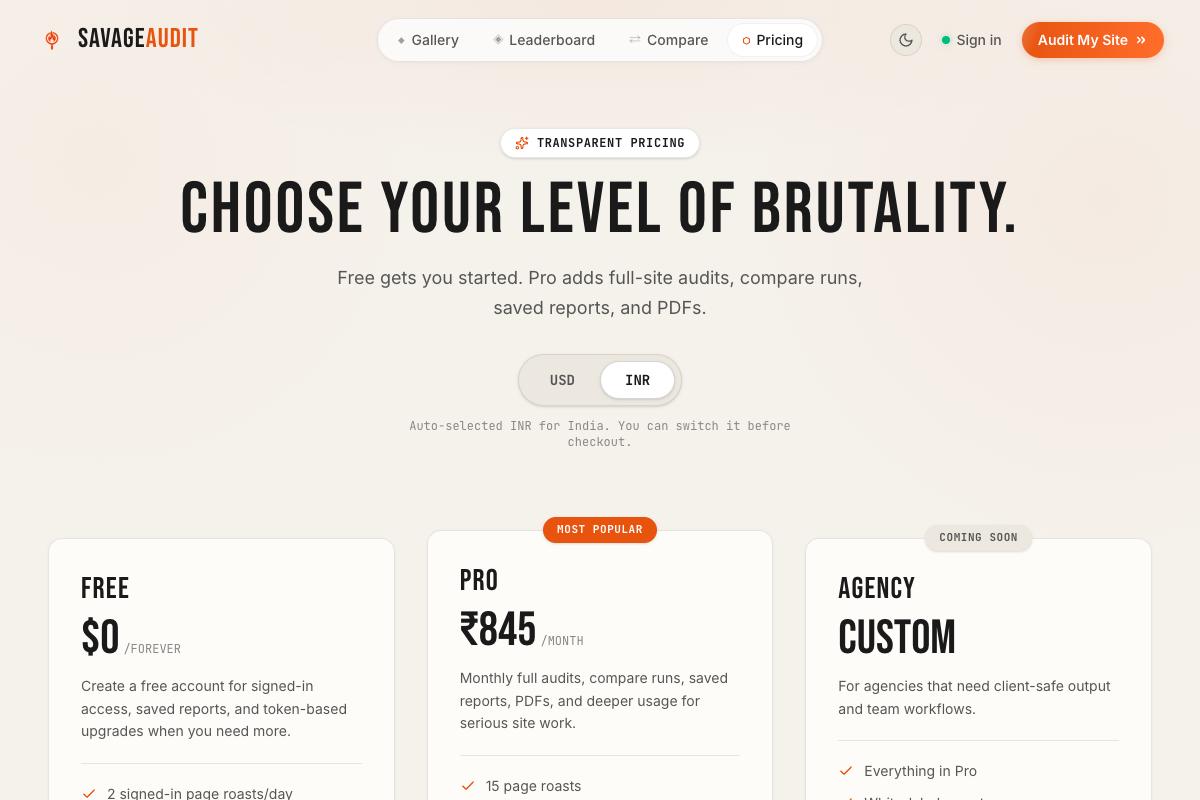
For a screenshot in a tutorial, inspect the smallest label the reader needs to follow. Can they distinguish the field name, amount or error message at the size shown in the article? Check colored text against its background and any thin lines around controls.
If the screenshot supports a technical claim, preserve an original capture. A lossless working copy gives you a stable reference when you resize, annotate or export a delivery version later.
PNG is a sensible starting point for UI documentation. You can compare a smaller delivery export, but make the readability decision from that actual export. A file-size table cannot make it for you.
Transparent logos: the smaller file can lose the feature you need
The logo makes the limitation easy to see. Its PNG export retained an alpha channel. The JPG exports did not, so our encoder filled the transparent area with white.
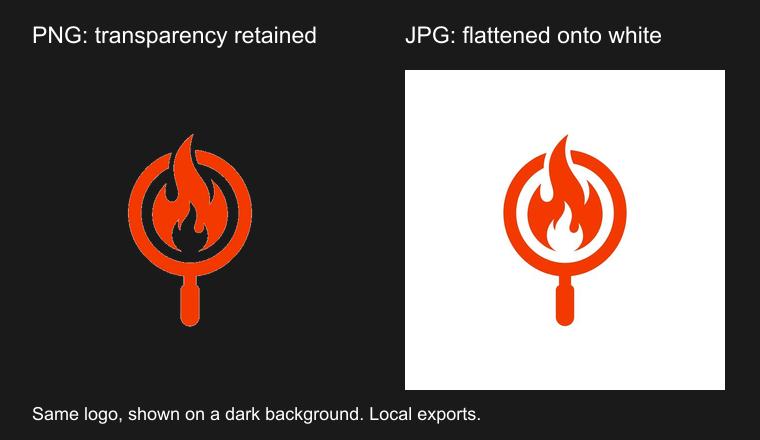
The 15.4 kB JPG is smaller than the 31.6 kB PNG. It also fails the requirement if the logo must blend with both a light and a dark page.
For a raster logo that must blend into the page, keep a format that supports transparency. If you already have an appropriate SVG version of a logo or icon, evaluate that vector asset rather than converting it into another raster file by habit.
Flattening is fine when you want the image to have a fixed background. Make that a deliberate choice, and preview the result wherever you will place it.
The PNG you upload may reach visitors as AVIF
We checked the cover image used on our JSON-LD examples article. The source URL ends in .png. Its image request also includes auto=format and asks for a 1600 × 900 crop.
On November 23, 2026, we requested that same URL with two different Accept headers. Both requests returned HTTP 200.
| Request accepted | Response Content-Type | Encoded response body |
|---|---|---|
| AVIF, WebP and other image types | image/avif | 66,750 bytes |
| PNG | image/png | 2,627,364 bytes |
Sanity documents that auto=format selects an output format using the request's Accept header. In this check, the .png extension did not identify the format of the first response body.
This is a delivery observation, not a controlled equal-quality PNG-versus-AVIF test. The server chose its transformation settings. We did not measure a visitor's loading time or claim the two responses preserve identical detail.
Before converting a whole image library, check what the site already delivers.
Open the published page in your browser's developer tools. Select an image request in Network, then inspect its request URL, response Content-Type, dimensions and size information. Note whether the tool shows resource-body size, transferred bytes or a cached result before comparing its number with your export.
A CMS preview or file extension can miss a transformation in the delivery path. Check the page visitors load, at a relevant viewport, before deciding that the uploaded PNG is the file causing a large transfer.
A practical PNG-or-JPG decision for each website image
For the next image you work on, write down its purpose before exporting.
| Image's job | Start by checking | Keep it when |
|---|---|---|
| Show a product with texture and gradual color changes | A JPG export alongside the source | The useful detail remains clear at the required display and zoom sizes |
| Explain a UI step with small labels | A PNG working copy and the intended delivery export | Readers can identify the controls and text they need |
| Blend a raster logo into different page backgrounds | A transparency-capable export | The alpha channel survives and edges look right on those backgrounds |
| Display a vector logo or icon | The existing SVG, if available | The asset suits the site and remains readable at its intended sizes |
Then check the published request. Your image service may already produce WebP or AVIF variants. MDN's format guide discusses those modern formats; the practical decision still includes detail, transparency, compatibility and the delivery setup you use.
Avoid converting a JPG into PNG and expecting it to recover detail from an earlier lossy export. A lossless container can preserve the pixels you have; it cannot reconstruct the original scene. Go back to the better source when you need another export.
Renaming a file extension also does not re-encode its contents. Use an actual image encoder, then verify the output format.
Reproduce the export comparison on your own image
This Node.js example follows the test's normalization and encoding settings. We ran it with Sharp 0.34.5. Save a source as input.png and run the script in an environment with that package installed.
import fs from 'node:fs/promises'
import sharp from 'sharp'

const { data, info } = await sharp('input.png')
  .resize(1200, 800, { fit: 'inside', withoutEnlargement: true })
  .toColourspace('srgb')
  .raw()
  .toBuffer({ resolveWithObject: true })

const image = () => sharp(data, {
  raw: {
    width: info.width,
    height: info.height,
    channels: info.channels,
  },
})

const files = [
  ['output.png', await image().png({
    compressionLevel: 9,
    adaptiveFiltering: true,
    palette: false,
  }).toBuffer()],
  ['output-420.jpg', await image()
    .flatten({ background: '#ffffff' })
    .jpeg({ quality: 80, chromaSubsampling: '4:2:0',
      progressive: false, mozjpeg: false }).toBuffer()],
  ['output-444.jpg', await image()
    .flatten({ background: '#ffffff' })
    .jpeg({ quality: 80, chromaSubsampling: '4:4:4',
      progressive: false, mozjpeg: false }).toBuffer()],
]

for (const [name, buffer] of files) {
  await fs.writeFile(name, buffer)
  console.log(name, info.width, info.height, buffer.length)
}
The resize step fits your image within 1200 × 800 and avoids enlargement. Our product and screenshot samples fit that aspect ratio. For the 640 × 640 logo, we kept its original dimensions in the measured test. Choose the appropriate bounds for your own asset and record them.
Compare the resulting files in a viewer. Try a transparent asset on a dark background, and inspect text at the display size your page will use. If you change quality, subsampling or dimensions, record the new settings with the result.
Keep your original file. Repeated editing and export from a lossy delivery copy can make it harder to recover a useful result later.
File format is one part of the website image audit
Once the image looks right, check whether the page selects suitable dimensions for its layout. A small card and a full-width product gallery do not need the same source selection. Check the selected resource against the size at which the page displays it.
If the page loads slowly, our LCP guide covers finding the actual loading bottleneck. Use it to investigate the element and request path before attributing a slow result to PNG or JPG alone.
For the description readers need when they cannot see the image, use the alt text examples. Changing the file format does not supply that information. Google's image SEO guidance also covers the page context and accessible image markup.
You can include these checks in a SavageAudit website review. Keep the image observations specific: which asset, which dimensions, which delivered format, which visible problem, and which measurement would verify the change.
Keep a PNG when it preserves a feature you need. Use a JPG when its size and visible result suit the image. After uploading either one, check the response from the published page before deciding what to change next.
Common questions
Is PNG better quality than JPG?
PNG can preserve the normalized raster pixels without lossy compression. A typical JPG export changes pixel values to reduce file size. Whether those changes matter depends on the image and display size. Inspect the actual export, especially small text, fine detail and colored edges.
Should I use PNG or JPG for website screenshots?
PNG is a useful working format for screenshots with small text and sharp UI edges. You can compare smaller delivery exports, but check that readers can identify the labels and controls they need. Preserve the original capture when a screenshot supports documentation or a technical claim.
Why does my JPG logo have a white background?
JPEG cannot retain an alpha channel. A conversion tool must flatten transparent areas onto an opaque background, which may be white or another chosen color. Keep a transparency-capable raster format or an appropriate SVG if the logo needs to blend with different page backgrounds.
Is JPG always smaller than PNG?
No. Content, dimensions, encoder settings and metadata affect file size. JPG was smaller in our three samples at the recorded settings, but the logo lost transparency. Compare the output files and required features instead of treating one format as the winner for every asset.
Can a PNG URL return a WebP or AVIF image?
Yes, when an image service transforms the response. Our checked Sanity URL ended in .png but returned image/avif to a request that accepted AVIF. Inspect the response Content-Type and the image service's settings; the source extension alone does not establish the delivered format.
Will converting PNG to JPG improve SEO?
A conversion can change the image's bytes and appearance. It does not establish an SEO improvement on its own. Check the delivered resource, useful detail, page performance and image context. Preserve appropriate alt text and investigate the actual loading bottleneck before claiming a benefit.
Run your own public presence audit
See how your website, search footprint, AI visibility, social proof, and conversion trust look from the outside.