Write alt text that replaces the information or action an image provides in its page context. Describe the relevant visible details of a product photo. Explain the state shown in a useful screenshot. Give a chart a short summary and put its full data in accessible page content. Use an empty alt attribute for decorative images and describe the destination when an image alone forms a link.
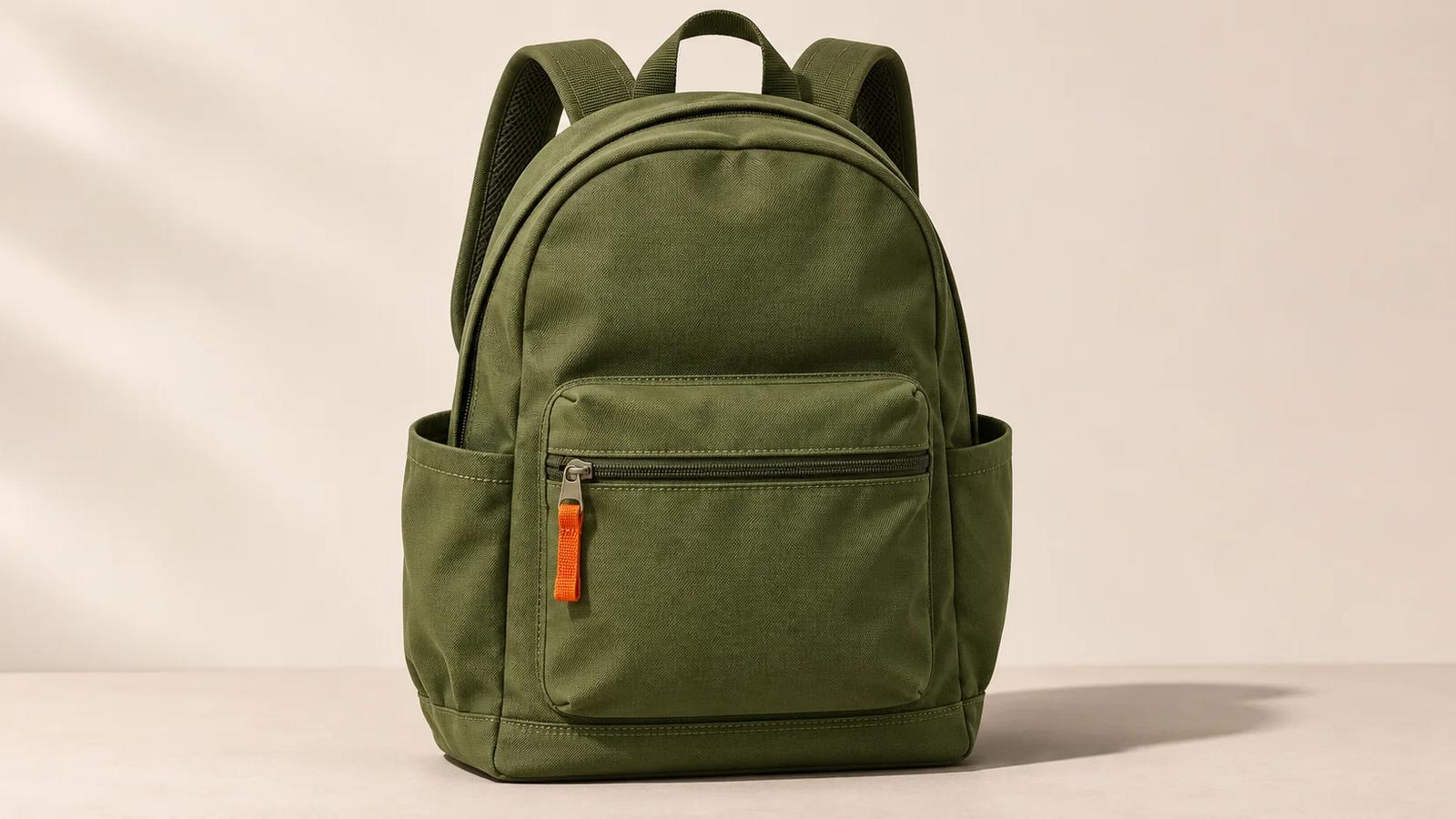
Look at the backpack above. On a product page, you could describe its green color, front pocket and orange zipper pull. Those details help a shopper understand the view.
Use the photo alone as a link to a collection and you need to explain the destination. Use it as decoration beside text that already carries the whole message and an empty alt attribute may fit. The wording depends on where you put the picture.
Good alt text carries the information or action a reader needs from an image in its page context. Read the surrounding text and check whether the image is part of a link before writing it.
The examples here use a generated backpack illustration, a screenshot of a fictional form and a chart with fictional figures. Each one includes HTML you can adapt to your own page.
Choose the image's purpose before writing the description
The HTML alt attribute supplies a text alternative for an image. That text can help someone who uses a screen reader or who cannot load the image. It should carry the information the image contributes, or explain its function when it acts as a control or link.
W3C WAI's image tutorials organize this decision around informative, functional, decorative and complex images. A photograph can belong to different categories depending on how you use it.
| What the reader needs | What to write | Example |
|---|---|---|
| Details visible in a useful photograph | A short description of the relevant details | `Olive-green backpack with a front zip pocket and two open side pockets` |
| A particular state shown in a screenshot | The field, message or change the screenshot demonstrates | `Request a quote form showing “Enter a valid email address” below Work email` |
| The finding in a chart | A brief summary, with full details available in the page | `Quote requests rise from 40 in January to 70 in March` |
| The destination of an image-only link | The destination or action | `Browse backpacks` |
| Decoration that contributes no information | An empty attribute | `alt=""` |
Check what the image adds beyond the nearby copy. For an interactive image, ask whether someone could understand the action without seeing the picture.
Product photo alt text that describes what the buyer can see
For the backpack at the top of this article, a useful description identifies the item and the visible features that distinguish this view.
<img
  src="olive-backpack-front.webp"
  alt="Olive-green backpack with a front zip pocket, two open side pockets and an orange zipper pull"
>
That describes the front view. Keep capacity, waterproof ratings and laptop sizes in the verified product specifications. You cannot establish those claims from this photograph.
On a real product page, use verified specifications in the visible copy. Keep the alt text focused on the image. If you have multiple product photographs, describe the view each one adds. A rear view might show padded shoulder straps. An interior view might show a compartment divider. Use those descriptions only when the photographs show them.
| Draft alt text | What a reader gets | Revision direction |
|---|---|---|
| `IMG_1048` | A filename | Name the item and useful visible details |
| `Backpack` | The item category | Add the color and the view's distinctive features |
| `Best waterproof laptop travel backpack` | Several claims the image cannot establish | Describe visible features and put verified specifications in product copy |
| `Olive-green backpack with a front zip pocket and two open side pockets` | A concise description of this view | Check that this is the view the page actually shows |
Read the result beside the product name. You may need the model or color to identify the image, but repeating the entire product title on every thumbnail can make the gallery tiring to navigate. Use each image to add what that view contributes.
Screenshot alt text should explain the state you are showing
A tutorial screenshot may show an error, point out a setting or document a change. Write the alternative around the part the reader needs to notice.
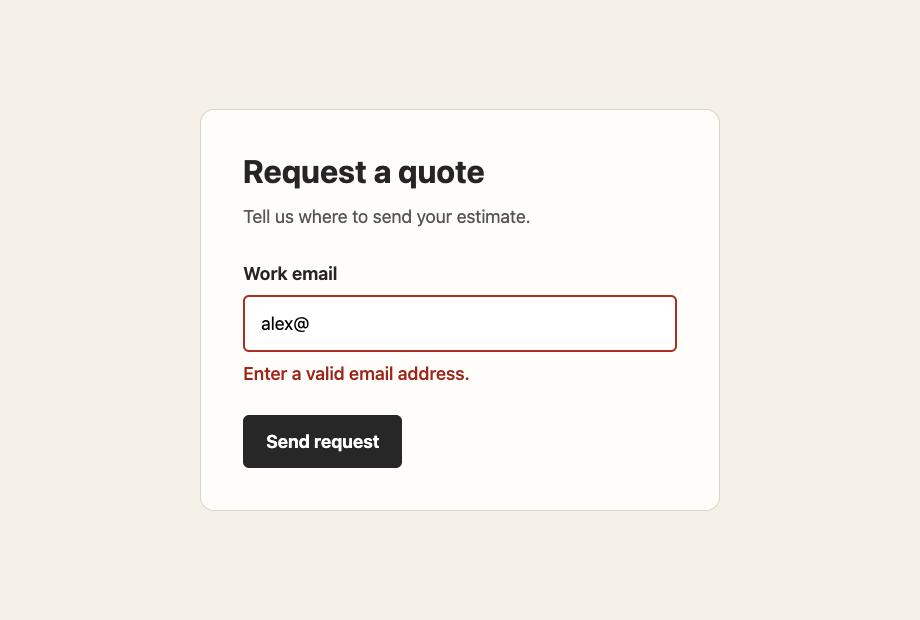
In this screenshot, the Work email field contains alex@. The message underneath says “Enter a valid email address.” The useful information is the field and its error state.
<img
  src="email-error-example.webp"
  alt="Request a quote form showing ‘Enter a valid email address’ below the Work email field"
>
For an article about error placement, “below the Work email field” matters. For an article about wording, include the exact message. Put the steps someone needs to follow in the surrounding text.
In a working form, connect the error to the input in HTML. The screenshot's alt text helps someone understand the picture, while these attributes help someone use the form. This is the relevant part of our illustrative form.
<label for="work-email">Work email</label>
<input
  id="work-email"
  name="email"
  type="email"
  value="alex@"
  aria-invalid="true"
  aria-describedby="email-error"
>
<p id="email-error">Enter a valid email address.</p>
Here, aria-invalid marks the invalid state and aria-describedby connects the input to the error text. In a working implementation, update the state and message as validation changes.
A chart needs its message and its data
If the point of a chart is an increase in quote requests, put that finding in the alternative. “Bar chart” leaves the reader without the information you drew it to show.
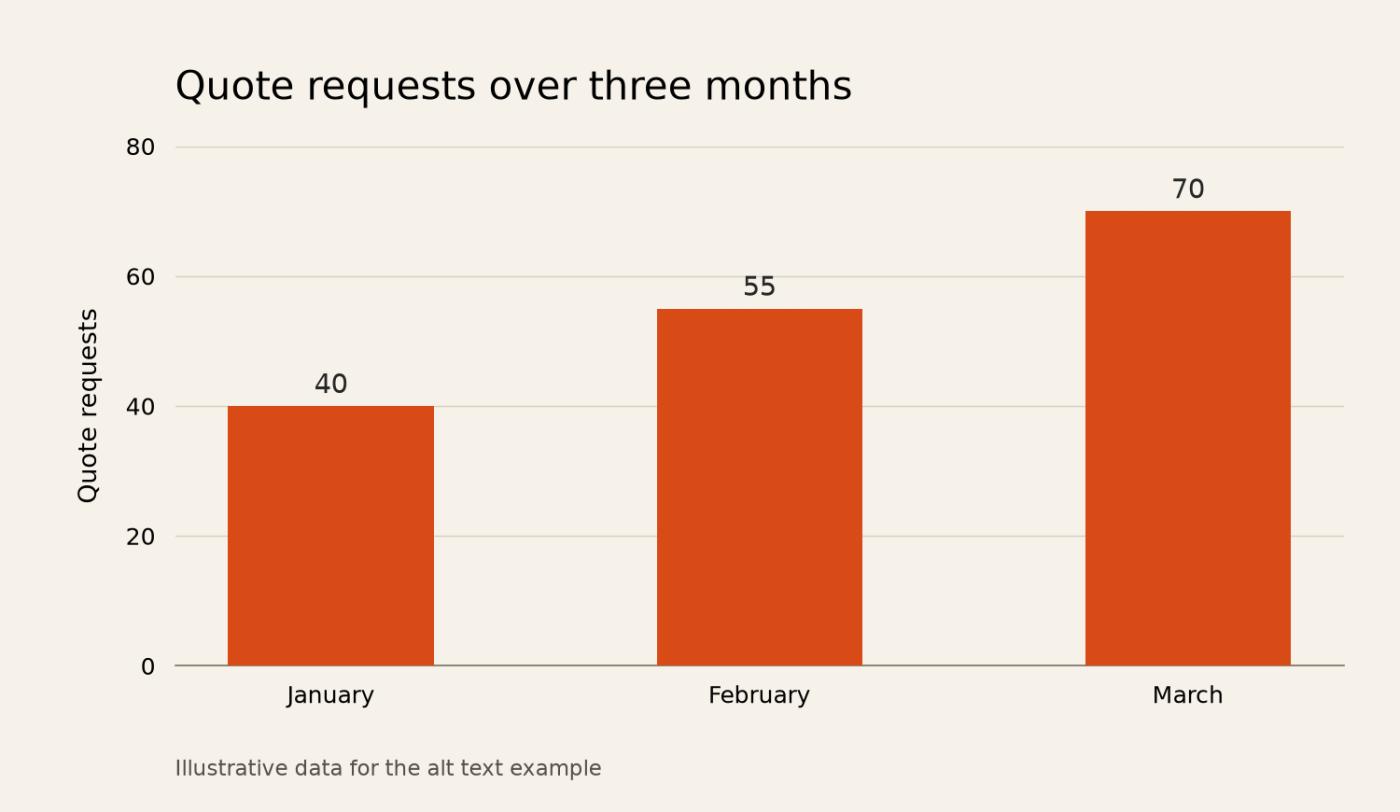
The alternative summarizes the increase. The table gives the monthly figures for anyone who wants to compare them.
| Month | Quote requests in the example |
|---|---|
| January | 40 |
| February | 55 |
| March | 70 |
<figure>
  <img
    src="quote-requests-example.webp"
    alt="Fictional quote requests rise from 40 in January to 70 in March"
  >
  <figcaption>Illustrative monthly quote requests</figcaption>
</figure>

<table>
  <caption>Values used in the illustrative chart</caption>
  <thead>
    <tr><th scope="col">Month</th><th scope="col">Quote requests</th></tr>
  </thead>
  <tbody>
    <tr><th scope="row">January</th><td>40</td></tr>
    <tr><th scope="row">February</th><td>55</td></tr>
    <tr><th scope="row">March</th><td>70</td></tr>
  </tbody>
</table>
W3C's complex-image guidance supports a short alternative together with a fuller text equivalent. For a chart, that fuller explanation may include the values, units, relevant comparisons and the pattern the reader needs to understand. A table works for this simple example. A diagram explaining a process may need paragraphs that explain the relationships.
Check the interpretation as carefully as the numbers. These fictional counts show an increase. They do not explain what caused it. If your chart uses a different unit, has gaps or covers an uneven period, include that context where people read the data.
The same image changes when it becomes a link
Suppose you use the backpack image as the only content of a link to a collection page. The alternative needs to tell someone what following it will do.
<a href="/collections/backpacks">
  <img src="olive-backpack.webp" alt="Browse backpacks">
</a>
Now suppose the link already contains the visible words “Browse backpacks.” The text supplies the destination, so you can give the image an empty alt attribute within that same link.
<a href="/collections/backpacks">
  <img src="olive-backpack.webp" alt="">
  <span>Browse backpacks</span>
</a>
These examples use an illustrative collection link. Inspect the full anchor on your own site. Text near a picture may sit outside the link, leaving it without an understandable name.
W3C's functional-image guidance applies the same principle to image buttons and linked logos. A print icon should communicate the print action. A logo used alone to link home can identify the destination. Check the full control or link, including its text and any explicit accessible label, when you review it.
Empty alt text has a specific use
An image that adds decoration to a page can use alt="". For example, a leaf pattern behind a newsletter heading may add atmosphere while the heading and description carry the whole message.
<img src="newsletter-leaf-pattern.webp" alt="">An empty attribute and an omitted attribute produce different markup. W3C notes that some screen readers may announce a filename when the attribute is missing. Use the deliberate empty value when you intend the image to contribute no text alternative.
You can also use empty alt text when nearby text already supplies the image's entire relevant meaning. Make that decision in context. A product detail that a shopper needs, an image-only button or an instruction available only inside a screenshot still needs attention.
Keep alt text, captions and nearby explanations useful together
A caption is visible to readers on the page. An alt attribute supplies the image's text alternative. They can share important information, but copying a long caption into the attribute often creates repetition.
For a research chart, you might use the alt text for the main finding, the caption for what the figure covers, and page text or a table for the details. For a tutorial screenshot, a short caption can explain that the image shows the state after a particular action. Keep the instructions themselves in the article.
For images containing text, include essential words in the alternative if readers cannot get them elsewhere on the page. A screenshot of a whole document may need an accessible text version. W3C's image decision tree distinguishes meaningful image text from words already available nearby.
How long should alt text be?
Use the shortest wording that carries the image's relevant information or function. W3C recommends moving detailed explanations to a longer text equivalent when a phrase or sentence cannot do the job.
A color swatch might need only “Olive green.” A screenshot may need a sentence that identifies the field and message. A complex chart may need a short summary plus the supporting information in the page. Let the task determine the length.
Read it aloud with the adjacent text. Remove repeated introductions and details that have no bearing on the task. Words such as “screenshot,” “chart” or “illustration” can help when the type matters, but follow them with the information the reader needs.
What alt text contributes to image SEO
Google's image SEO documentation says it uses alt text with computer vision and page content to understand an image. It recommends useful descriptions that fit the page context and warns against keyword stuffing.
Use the terms that identify what the image shows. In the product example, the color and pocket details belong because they describe the view. A list of unrelated buying phrases gives readers little information about the photograph.
Review the image's placement and surrounding copy too. Keep the product information, heading and visible explanation accurate. Search engines and people encounter those parts together. If heavy images are also slowing the page, use the performance checks in our Largest Contentful Paint guide.
Check the rendered page before closing the audit
A CMS alt field is a starting point. The published template decides which value reaches the image and how that image sits inside a link, card or gallery.
- Find the image on the public page. Read the surrounding copy and identify its purpose there. Include gallery thumbnails, linked cards and mobile versions in your review.
- Inspect the rendered HTML. Select the image in browser developer tools and look at
alt. Check whether the value is missing, empty or descriptive. Then check whether the image sits inside a link or button. - Review the control's name where it is interactive. Use the browser's accessibility inspection tools to see the accessible name of the link or button. Confirm that it identifies the action or destination.
- Check the information in context. Read the alternative with the adjacent text. Follow instructions using the article's text, and confirm that a chart's full information is available outside the picture.
- Check the template after a fix. A shared product-card component can repeat the same problem across many pages. Review one changed example and another page using that component.
Use a missing-alt report to locate images, then open their pages. When handing the fix to a developer or editor, include the page URL, image and reason for your proposed alternative. Our technical SEO audit checklist can help place the change alongside other template work.
We build SavageAudit. Use an audit to find pages worth reviewing, then open the page and check the image against the surrounding copy and customer task. For broader launch checks, work through the startup website checklist.
Common questions
What is a good example of alt text?
For the product illustration in this article, “Olive-green backpack with a front zip pocket and two open side pockets” describes useful visible details. The right wording depends on the image's purpose. If that picture forms an image-only link to a collection, “Browse backpacks” explains the destination.
Does every image need descriptive alt text?
Images need alternatives appropriate to their purpose. Useful photos need the relevant visual information, and image-only controls need an understandable action or destination. Decorative images can use an empty alt attribute. Check the surrounding text before deciding whether a description would add information.
How do I write alt text for a screenshot?
Describe the state or instruction the screenshot demonstrates. For a form error, identify the field and the relevant error message. Put the steps someone needs to follow in readable page text. A screenshot showing a whole document may also need an accessible text version.
Should chart alt text include all the data?
Use a short alternative that communicates the chart's purpose or main finding, then provide the full relevant information in nearby text or a table. For a complex chart, include the units and relationships the reader needs to understand it. The fictional example here includes all three monthly values in an HTML table.
Can AI write alt text for my images?
An AI-generated description can give you a draft. Review it against the image, its purpose and the adjacent text. Remove guessed specifications or details you cannot verify. Check linked and decorative images separately because their role in the page can change what the alternative should say.
Run your own public presence audit
See how your website, search footprint, AI visibility, social proof, and conversion trust look from the outside.